StudyNext Operations Manual & Practical Guide
From creating plans and setting target dates to daily task execution, joining live study rooms, recording mock exams, and recovering from delays — everything you need to master StudyNext.
Creating Plans & Setting Target Dates
Enter your material volume and target date to auto-calculate daily quotas. Here are best practices for building an effective schedule.
11. Open New Plan in Plans tab
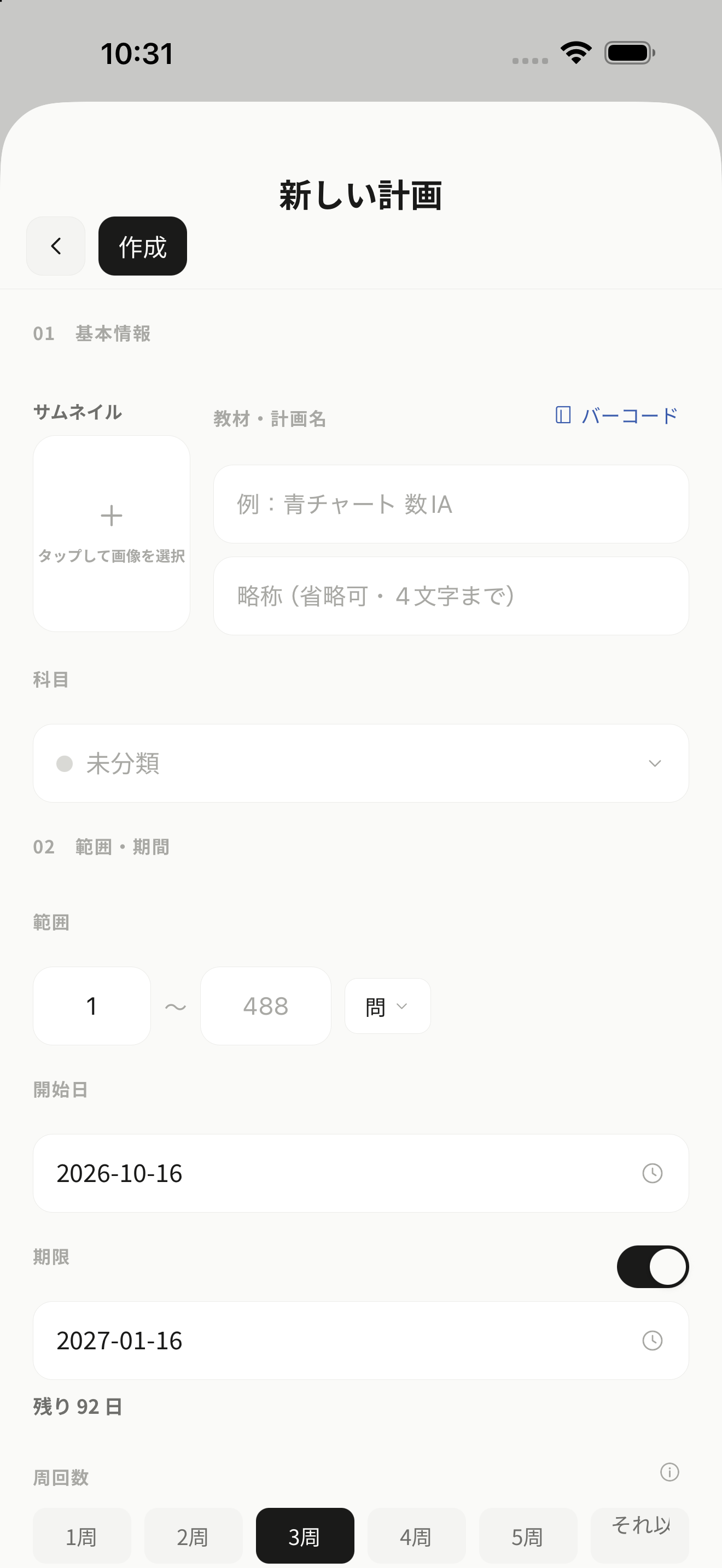
Navigate to the Plans tab and tap the '+' button or 'New Plan'.
22. Enter Textbook Information
Enter the title, optional 4-character abbreviation, and assign a subject.
33. Setting Target Dates Effectively
We recommend setting your target date 2-3 weeks prior to the actual exam. This reserve buffer lets you do full revisions and absorbs unexpected school events or sick days.
44. Define Volume and Units
Specify start and end pages, problems, or word counts. If you've already started, enter your current progress to resume from where you left off.
55. Weekly Distribution & Pace
Choose between equal pacing, weekday-heavy, weekend-heavy, or custom multipliers per day.
66. Chapters & Syllabus Outlines
Paste textbook outlines for auto-parsing, or scan the ISBN barcode to fetch metadata automatically.
77. Multi-Lap Review Rounds
Configure multi-round goals (e.g. 2nd or 3rd lap). The app automatically starts lap 2 once lap 1 is complete.
Daily Task Execution & Handling Delays
Everyday study starts on the Today tab. Learn how to reorder priorities and bounce back from busy days.
1Morning Routine: Check Today Tab
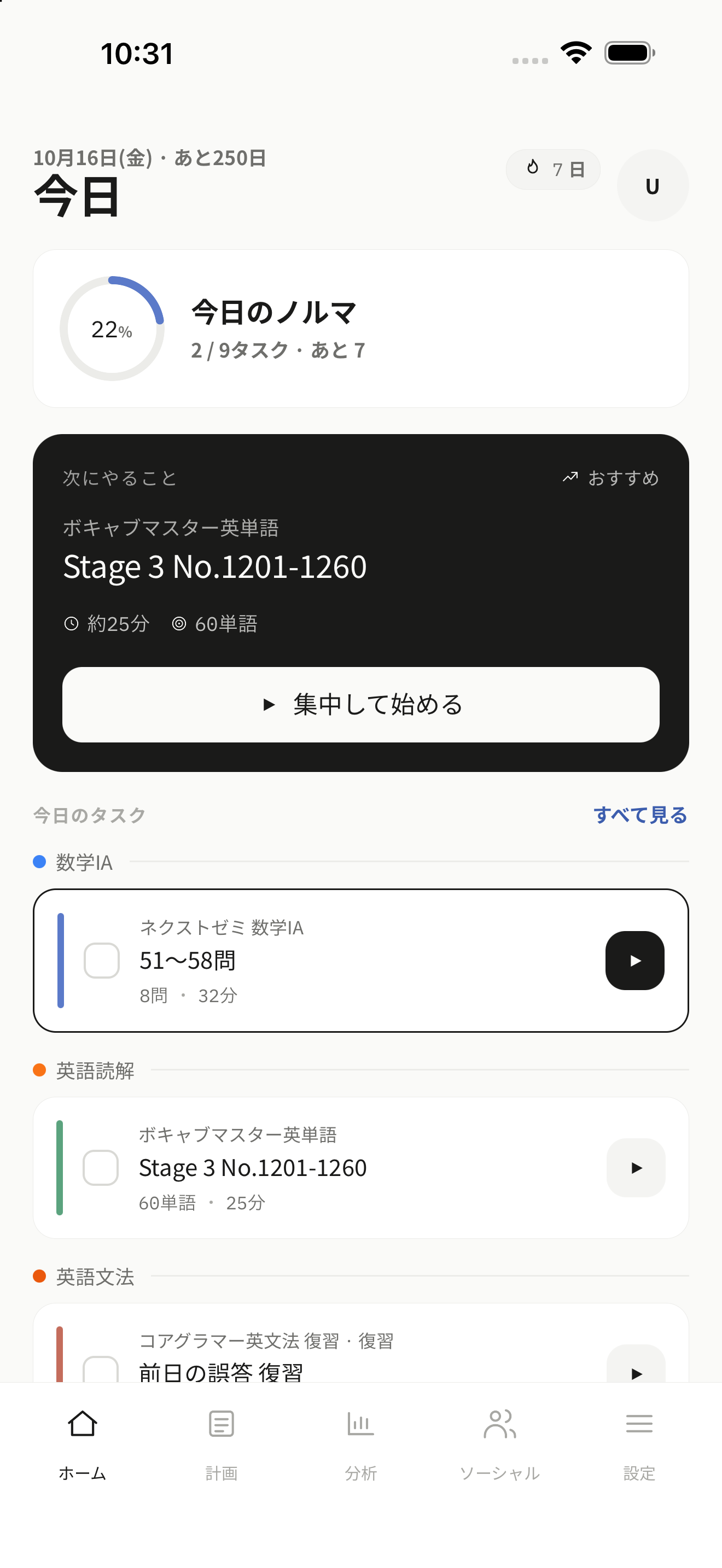
All quotas across your plans are aggregated onto your Today screen, along with your streak counter.
2Starting Tasks with Focus Timers
Tap 'Start' to launch the focus timer. Measured time automatically transfers to your log sheet.
3Checking Completion & Logging
Tap the checkmark to mark tasks as done. Enter completed pages, time, and focus rating to build your streak.
4Rollover & Skipping
Incomplete tasks automatically roll over to the next day. If a task cannot be done, select 'Skip'.
5Capping Daily Review Tasks
Set the daily review task cap in the plan creation/editing screen to prevent backlog overloads.
6(Optional) Drag-and-Drop Reordering
Press and drag any task card to arrange tasks by your preferred order of the day.
7Ad-Hoc & Recurring Tasks
Add one-off homework or recurring weekly assignments via '+ Add Task'.
Focus Timers & Logging Practice
Cultivate deep work with Pomodoro intervals and turn real performance into better future pacing.
1Switching Pomodoro & Stopwatch
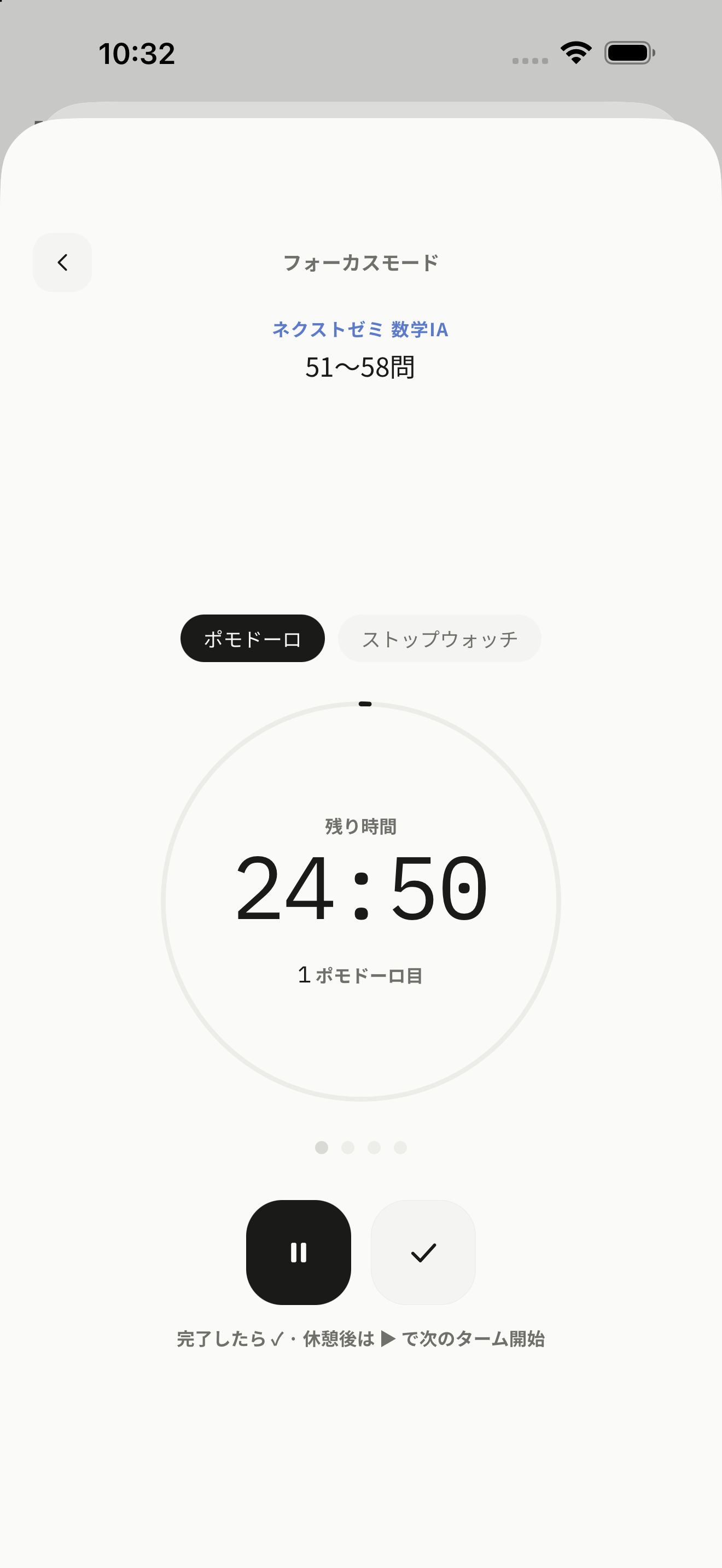
Switch freely between 25m/5m Pomodoro cycles and open-ended stopwatches. Interval durations are fully customizable.
2Live Activities on Lock Screen
On iOS, monitor countdowns directly from your lock screen and Dynamic Island without opening other distracting apps.
3Logging Completed Sessions
When a timer finishes, enter completed pages, star focus rating (1-5), perceived difficulty, and notes.
4How Logs Optimize Future Plans
Logs update your actual speed per unit (minutes per page/problem), refining future estimated workloads automatically.
Flashcards & Anki Deck Import
FSRS spaced repetition prompts cards right before your brain forgets them.
1Create Card Decks
Switch to Cards mode in the Plans tab and tap '+ New Deck' to organize cards by subject.
2Adding Cards & Cloze Deletions
Create prompts and answers with full support for rich text and cloze deletions.
3Importing Anki (.apkg) Decks
Import .apkg files with one tap, preserving images, audio, formatting, and historical review logs.
4Daily Reviews with 4-Grade Feedback
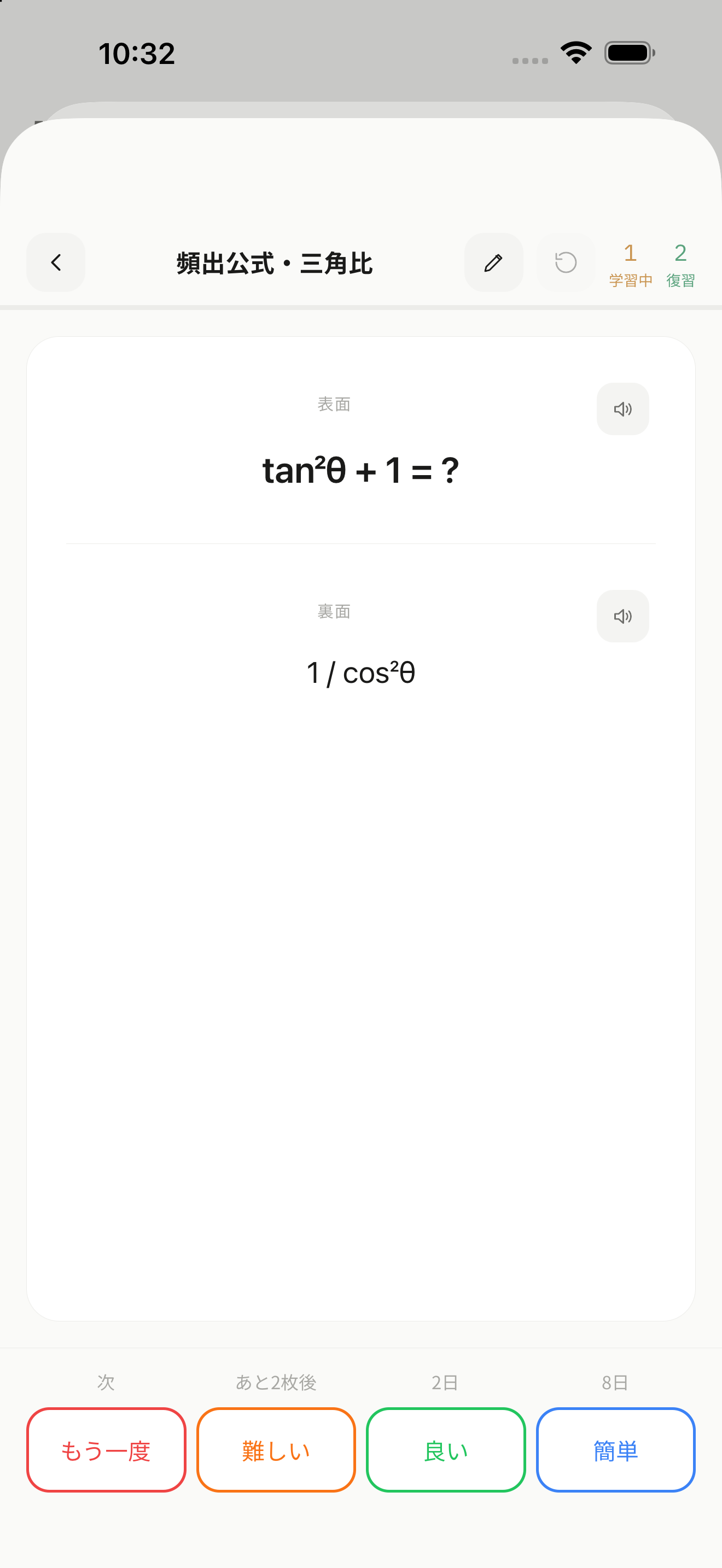
Rate recall with Again, Hard, Good, or Easy to let FSRS schedule the exact next review date.
Recording Mock Exams & Diagnostics
Pinpoint weak topics, diagnose blind spots, and turn missed questions into actionable review tasks.
1Registering Exam Results
Under Analytics, record exam titles, dates, letter grades (A-E), percentage scores, and percentiles.
2Entering Section Scores
Input points scored and maximum points per exam section to calculate loss rates automatically.
3Exam Heatmap Diagnostics
View section accuracy heatmaps to instantly see which subtopics dragged down your score.
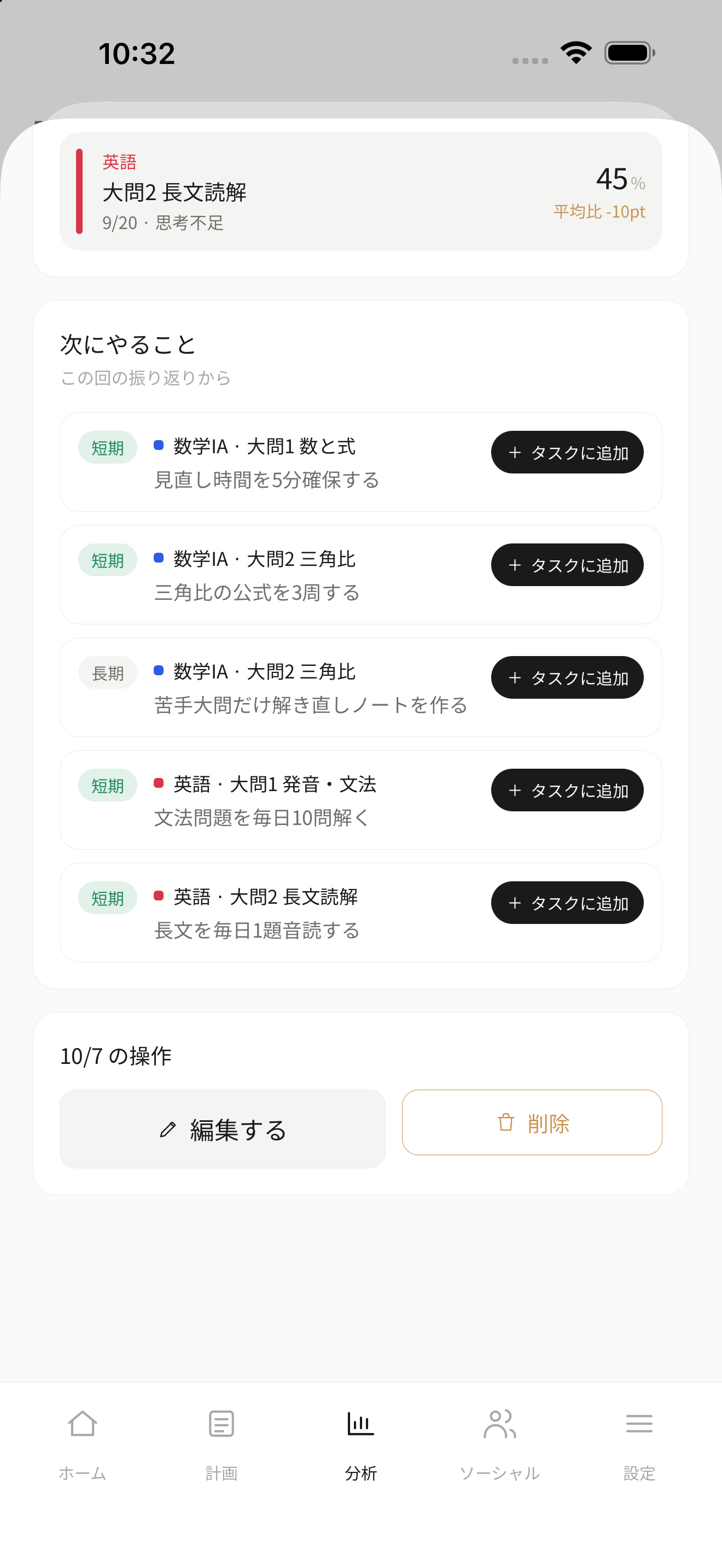
4Converting Top 3 Weaknesses to Tasks
The top 3 highest-loss sections are highlighted. Tap 'Add to Tasks' to insert them directly into next week's schedule.
5Overconfidence Calibration
Detects topics where your daily study logs felt 'easy' but your exam score was low, highlighting blind spots.
Account Sync & Backups
Keep your study data synchronized across devices and export local backups anytime.
1Upgrading from Guest to Bluesky
Sign in with Bluesky (OAuth) under Account in the Menu tab anytime without losing your local data.
2Real-Time Multi-Platform Sync
Data synchronizes instantly across iOS, Android, Web browsers, and Desktop (Windows/Linux).
3Backups & Data Portability
Export your entire dataset anytime in CSV, JSON, or CAR formats under Data Management.
Frequently Asked Questions
Q.What should I do if I fall behind schedule?
You do not need to manually redraw your plan. StudyNext recalculates upcoming daily quotas automatically based on your actual speed.
Q.Can I use it on mobile and PC at the same time?
Yes. When logged in with Bluesky, mobile, web, and desktop apps synchronize in real time.
Q.Can I record study sessions offline?
Yes. Local cache preserves all timers and records, syncing to the server when you are back online.
Q.Is the app free to use? Are there in-app purchases?
StudyNext is completely free and contains zero ads. All features are accessible without any paywalls or limitations. For users who wish to support ongoing development, optional voluntary tip/support purchases are available without unlocking exclusive features.
Q.Can I import existing Anki cards?
Yes. StudyNext accurately supports .apkg files including images, audio, cloze deletions, and review history.
Q.Are study room chats visible to the public?
Yes. Because StudyNext uses the AT Protocol, room messages are stored as public records on your PDS. Please do not post private information.
Q.Sync has stopped working
Please try logging out and logging back in from the Account screen to refresh your session.
Q.How do I pause a study plan?
Long-press the plan on the Plans screen, tap 'Change Status', and select 'Paused'.
Q.Tasks stopped appearing on the Today tab
Check the Plans screen to confirm that the target date has not passed, day-of-week settings are active, and the plan status is not set to Paused or Completed.
Start using StudyNext today
All features are completely free and without ads.
 Get it on Google Play
Joining Study Rooms & Study Teams
Stay disciplined and connected in virtual quiet rooms and small accountability teams.
1Finding & Joining Study Rooms
Open Rooms in the Social tab to view active quiet rooms. Tap to enter, or join via shared Bluesky links.
2Hosting Rooms & Privacy Levels
Create rooms with Public (anyone), Followers Only, or Invite Only settings.
3Room Timers & Public Chat
Timers track focus time in the room automatically. Chat messages are saved as public AT Protocol records on your PDS.
4Forming Teams (2-20 Members)
Invite study buddies using team codes or links.
5Cooperation vs Competition Mode
Cooperative mode focuses on everyone meeting daily goals; competition mode tracks study hour rankings.
6Daily Check-In Footprints
Post an end-of-day reflection footprint to celebrate consistency with teammates.